
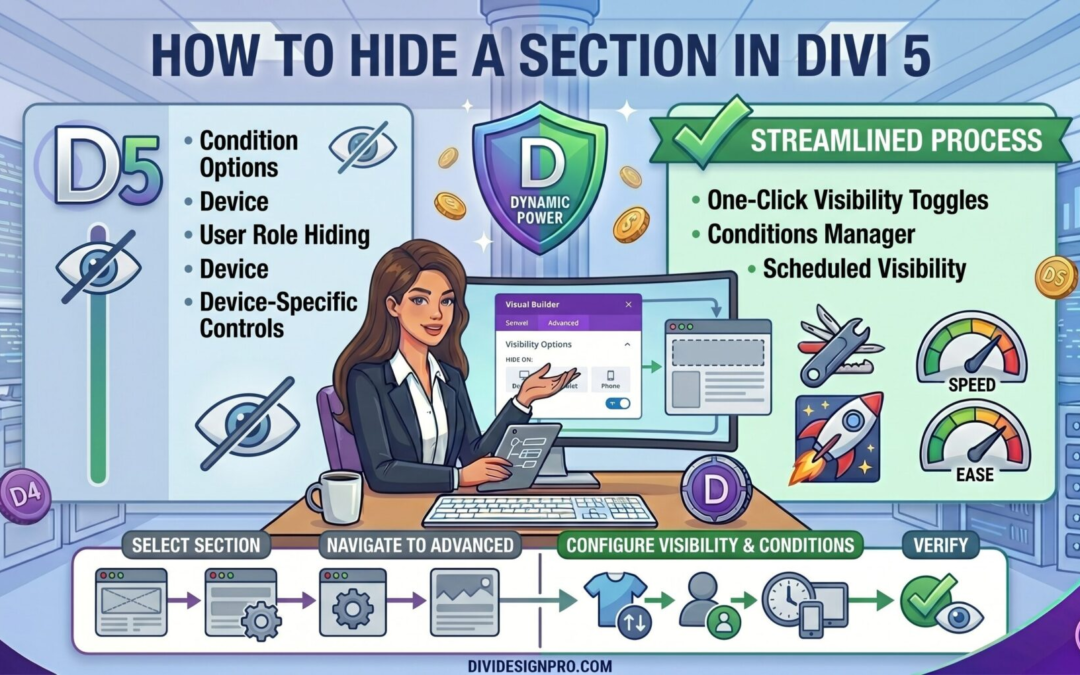
When building a website with Divi 5, there are many situations where you may want to temporarily hide a section without deleting it. Whether you're working on a new design, running seasonal promotions, testing layouts, or preparing content for a future launch, Divi makes it easy to hide sections from visitors while keeping them available inside the builder.
In this guide, you'll learn multiple ways to hide a section in Divi 5 and when to use each method.
Why Hide a Section Instead of Deleting It?
Many website owners delete content only to realize later that they need it again.
Hiding a section allows you to:
- Preserve your design work
- Temporarily remove content from visitors
- Test new layouts safely
- Schedule future content updates
- Keep backup versions of sections
- Run seasonal promotions without rebuilding them later
Instead of recreating everything from scratch, you can simply unhide the section whenever needed.
Method 1: Disable a Section Using Visibility Settings
This is the most common method for hiding a section.
Step 1: Open the Visual Builder
Open the page where your section is located and launch the Divi 5 Visual Builder.
Step 2: Open Section Settings
Hover over the section you want to hide and click the Settings icon.
Step 3: Navigate to Visibility Options
In the settings panel, locate the Visibility settings.
Step 4: Disable the Section
Turn off the visibility option for the section.
Once disabled, the section will remain inside the builder but will not appear on the front end of the website.
Benefits
- Fast and simple
- No code required
- Easy to restore later
- Preserves all content and styling
Method 2: Hide a Section on Specific Devices
Sometimes you only want to hide a section on mobile, tablet, or desktop.
For example:
- A large hero section may look great on desktop but not on mobile
- A complex layout may need a simplified mobile version
- Certain promotional content may only be relevant for larger screens
Steps
- Open the section settings.
- Go to Visibility options.
- Choose which devices should hide the section:
- Desktop
- Tablet
- Mobile
- Save your changes.
Divi will automatically display or hide the section based on the visitor's device.
Method 3: Hide a Section Using CSS
Advanced users may prefer using CSS.
You can assign a custom CSS class to the section and hide it using code.
Add a CSS Class
Example:
hidden-sectionAdd CSS
.hidden-section {
    display: none;
}
The section remains in the page structure but becomes invisible to visitors.
When to Use CSS
- Conditional display scenarios
- Custom development projects
- Dynamic JavaScript interactions
- Advanced visibility control
Method 4: Save Sections for Future Use
If you're hiding content for a long period, consider saving it to the Divi Library.
Benefits
- Keeps pages clean
- Reduces clutter in the builder
- Creates reusable design assets
- Makes future updates easier
After saving the section to the library, you can safely remove it from the page and reinsert it whenever needed.
Common Use Cases
Seasonal Promotions
Hide holiday banners after a campaign ends and reactivate them next year.
Website Redesigns
Build replacement sections while keeping the original versions available as backups.
A/B Testing
Create multiple versions of a section and selectively display them during testing.
Client Approval Workflows
Keep unfinished sections hidden until clients approve them.
Upcoming Features
Prepare future content before launch and reveal it when ready.
Things to Consider Before Hiding Sections
Impact on Page Length
Hidden sections do not display visually, but depending on the method used, some assets may still load.
SEO Considerations
Content hidden from users should not be used to manipulate search rankings. If content is not intended for visitors, ensure your visibility strategy aligns with your site's goals.
Team Collaboration
If multiple people work on the website, label hidden sections clearly so others understand why they exist.
A simple note such as:
Hidden for future campaign launch
can prevent confusion later.
Troubleshooting Hidden Sections
Section Still Appears
Check:
- Device-specific visibility settings
- Custom CSS overrides
- Caching plugins
- Browser cache
Section Disappeared in Builder
Verify that you haven't deleted the section accidentally. Hidden sections should still appear inside the Visual Builder.
Changes Not Showing
Clear:
- Divi cache
- Website cache
- CDN cache
- Browser cache
Then refresh the page.
Best Practice
For most users, the built-in Visibility settings in Divi 5 are the recommended solution. They are easy to use, require no code, and allow sections to be restored instantly whenever needed.
Use CSS-based hiding only when you need advanced control or custom functionality.
Final Thoughts
Hiding a section in Divi 5 is a simple but powerful feature that can improve your workflow and make website management easier. Whether you're preparing future content, testing designs, or temporarily removing information from visitors, Divi gives you multiple ways to control section visibility without losing your work.
By using Divi 5's visibility options, device-specific controls, and reusable design features, you can build websites more efficiently while keeping your layouts organized and flexible.